At a certain point in the life of a company, we see the need to expand operations, units or people. When it comes to people, as teams grow, one of the first things that starts to break down is communication and how information is collected, tracked and shared.
In the starting phases, everything feels doable and manageable, not overwhelming. Tasks live and are tracked in emails, quick updates happen in chat, “formal or informal”, and spreadsheets sit somewhere in a shared folder. But then you create a new shadow spreadsheet to track other teams memners’ spreadsheets, because you cannot count on their own. What people usually say: “We know what’s going on.”
But as time passes and with the work overload, things get messy.
Requests get lost in populated inboxes with different priorities. Updates are inconsistent. Usually, two or more people are tracking the same thing in different places, consciously or maybe without realizing it. And suddenly, simple daily work requests regular and unnecessary follow-ups just to stay aligned.
This is where a tool like Microsoft Lists starts to make a difference and help your teams and organization be rigth back on track.
Microsoft Lists helps in the way we communicate and also helps in tracking issues that many teams and organizations don’t know that exist until the overload and unexpected demands are unmanageable and growing fast.
Lists have a better structure compared to a spreadsheet (excel for example), but with a user-friendly experience. Even more when you start to get exposed more and more to the tool. With a basic knowledge of excel you can use and work with Lists without needing to know a bunch of formulas. What is more, also not as complex as a full project management system.
Generally speaking, this means that you can:
A good benefit from that is that it integrates smoothly with other tools many organizations already use, like Microsoft Teams and SharePoint, mainly because it is also an application of the Microsoft 365 ecosystem. There’s no need to introduce something new that will impact the way ot your team works or existing workflows with new tools, train people, or have to go through the changing process phases.
Instead, Lists fits into what’s already in place, working there without bringing more complexity for a team who is strugling.
As we constantly bring in our blogs is not the lack of tools that impact most teams, actually, it is the opposite. What really impacts it is too many tools we have.
The issue is usually how we can take the most from those tools we already have instead of looking for a new one that will solve everything.
By supporting many small to medium companies and institutions, the main findings are that usually, information is scattered. Everybody is counting on someone else’s manual work or updates. And sometimes, the new systems in place are much more complex to implement that the teams in the middle of the process not buy it and start to give up and return to their own way of doing things.
Think about a normal request process:
Someone sends an email, someone tracks it manually, updates are discussed in meetings and touchpoint, and after many hours lost, nobody is sure what the current status is.
It’s not that people aren’t doing their job. It’s that the system and processes around the work aren’t clear. It is you jugling many plates and still having to perform well.
Microsoft Lists replaces all this process, for example, with something more structured, where you can see updates in real time and everyone is looking at the same source of truth.
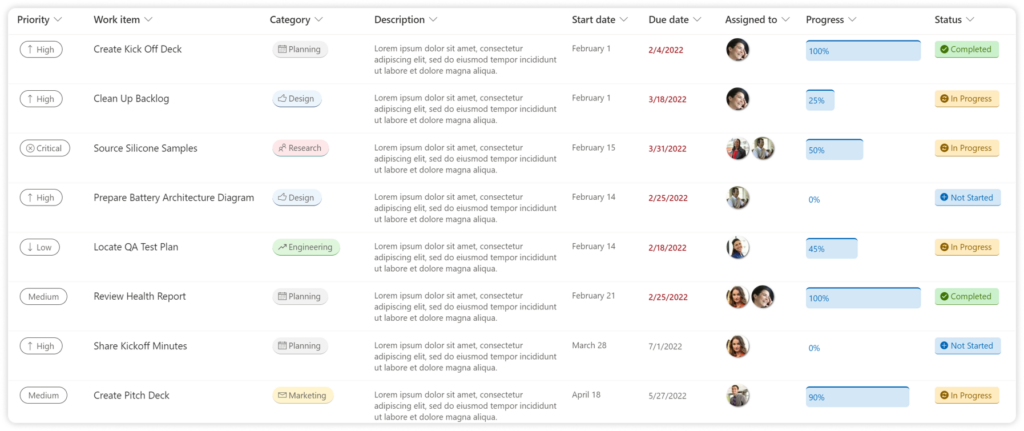
One of the biggest strengths of Microsoft Lists is its flexibility; actually, most of the MS365 tools are so flexible and customizable that sometimes they can scare people. Again, as soon as you start to get exposed to it it is no way back. It can adapt to different types of work without becoming complicated.
This is often the easiest and most impactful function to start.
Instead of tracking requests through email, which is actually impossible, Lists can work with a simple intake/request list. Each item can include:
Right away, the entire team can see it, improving transparency. People don’t need to ask for updates, and uncontable follow ups—they can see the request in one place.
The aiming of Microsoft Lists is not to replace project management tools, but it works very well for supporting coordination and tracking to do list for example.
With Lists, teams can track:
This is really helpful in cross-functional environments working with different areas or departments of your organization, where work involves members from various teams but doesn’t require a full project plan. Again, it could be useful for a more operations perpectives.
For operational work Lists works even better. Lists can support a wide range of needs, such as:
Instead of maintaining multiple spreadsheets, creating categories, due dates, and assigned people, everything lives in one shared and structured space.
The most difficult part for new users or when you are trying to implement a new platform, tools or feature is adoption.
Even well-designed and user-friendly systems fail if people don’t use them consistently.
On the other hand, Microsoft Lists tends to work because it feels familiar. For many people, it looks and behaves similarly to an enhanced version of Excel, but without all the complications regarding different formulas and ways you can get to the same result. It’s also accessible directly within Microsoft Teams, which reduces the conflict and fear of starting to use it.
There’s no huge learning curve, and teams don’t need training to start using the tool.
Another important point and benefit that we mentioned before is flexibility. Teams can begin with something simple, a pilot, for example, adjusting and building up over time, as they get comfortable, instead of trying to start with the best structure right way.
A common mistake when we talk of implementing new tools or applications is trying to have a “perfect” system process from the beginning. As everything is currently evolving faster and faster. The best approach is to build things step by step.
What we have seen is that trying to be perfect leads to something too complex—something people who are comfortable, even with a demanding overload, prefer not start to using it.
A better way to starting introduct it to your team is to keep things simple:
For example, a basic list could include:
Starting with this simple structure can create real value and impact within your organization or department without overwhelming users.
But now comes the real benefit of Microsoft Lists. And it is more visible because you can connect it with the Microsoft 365 ecosystem.
For example:
Instead of information sitting in different tools from different platforms, it begins to synchronize and flow across all MS 365 tools.
This is often where teams start to see a shift—not just in organization, but in how work actually moves.
At HumanFlow Collaboration, our focus is not just on bringing new tools as a formula that is ready for use, but on improving how work flows across teams and actually fits your needs.
Microsoft Lists is one of the first steps that we suggest introducing in your process. Not only because of the real benefit you will see right away, but it actually helps with the team mindset shift. It helps:
But again, besides the flexibility, I would say the main impact comes from how it connects with other elements and tools from the Microsoft 365 ecosystem:
When these pieces work together, teams spend less time managing work and more time actually doing it. Bring value and results to your business.
Microsoft Lists is not about adding another tool to an already crowded environment.
It’s about creating clarity.
A shared place where work can be tracked, updated, and understood without constant follow-ups or confusion.
In many cases, that small shift—just having a clear and consistent system—is enough to significantly improve how a team operates.